# Creating a Todo App - 8: Going into Production with the httpGate Proxy Server
Now let's assume we're finally happy with our little Todo-App. Of course, the next thing we want to do is to **host** it somewhere public for the world to see. In order to do this, we need a little bit more preparation.
--------------------
### The ``httpGate`` utility
Up to now we deployed our little application only to our local application server. In order to create a real webserver, we have some more requirements:
- We need a single application entry port (80 or 443),
- allow PicoLisp applications to run as non-root,
- start application servers on demand,
- handle HTTPS/SSL communication.
In order to fulfill these requirements, we can use the ``httpGate`` proxy server.
----------------
### Installation and start up
There should already be an ``httpGate`` executable in the ``bin`` folder of your PicoLisp installation (otherwise run ``make`` in the ``src`` folder).
``httpGate`` needs to be executed with root privileges. Let's test it: First start any PicoLisp application, for example the [``todo-user-login-rolebased.l``](https://gitlab.com/picolisp-blog/web-applications/-/blob/main/todo-list-example/todo-user-login-rolebased.l) script which starts on port 8086.
```
$ pil todo-user-login.l -main -go +
# in another terminal:
$ sudo ./pil21/bin/httpGate 80 8086
$
```
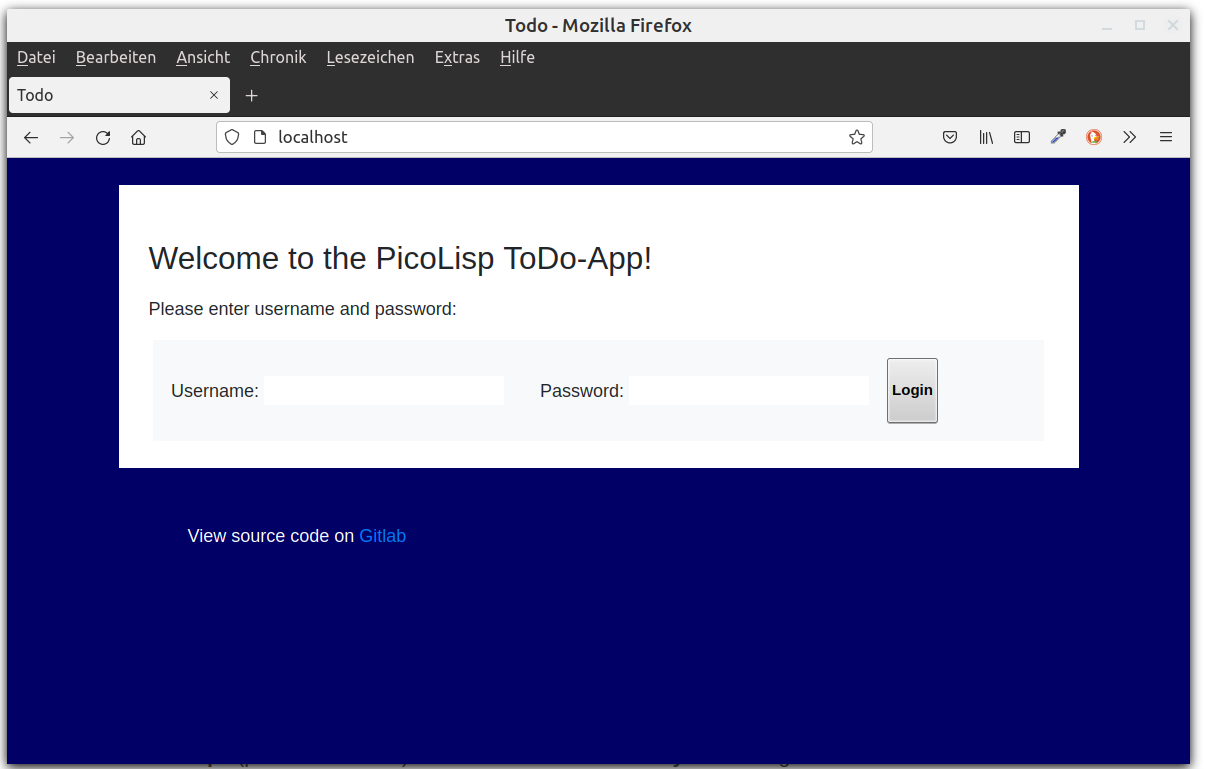
The prompt returns immediately because ``httpGate`` is starting in the background and creating a proxy server from port 80 to port 8086. Now visit http://localhost:80, and you should be able to see the running app.
------------------
In order to run it as HTTPS, you can pass the certificate as additional parameters:
```
bin/httpGate 80 8080
bin/httpGate 443 8080 pem/www.domain.key,pem/domain.crt
```
--------------------
### Defining a config file
Now let's start our app directly with ``httpGate`` instead of both processes separately. For this, we are using a simple config file called "names" (the name is arbitrary), which can contain several applications.
```
todo 8086 mia /home/mia/todo-list-example log/todo ./pil todo-user-login.l -main -go -wait
```
The structure is as follows:
- "todo" is the name of the application, and the key to this line.
- "8086" is the port where this server should listen at.
- "mia" is the user under whose ID the server should run.
- "/home/mia/todo-list-example" is the working directory where the server should start.
- "log/todo" is a log file to redirect stdout/stderr to.
- The rest of the line "./pil todo-user-login.l ..." is the command to start the application.
Note that we changed the server parameters from debug mode ``+`` to production mode ``-wait``.
*Note: Don't use ``~`` as replacement for the home directory, it won't work.*
-----------------
### Debugging: Some useful commands
``httpGate`` is not very talkative, so below you can find some additional commands to test the functionality. For example, we can see which processes are running on port 8086 using [``lsof``](https://en.wikipedia.org/wiki/Lsof) (list open files):
```
$ lsof -i :8086
COMMAND PID USER FD TYPE DEVICE SIZE/OFF NODE NAME
picolisp 22821 mia 4u IPv6 462148 0t0 TCP *:8086 (LISTEN)
```
Or we can use ``ps`` (process status) and search for ``httpGate``:
```
$ ps ax | grep httpGate
22711 ? Ss 0:00 ./pil21/bin/httpGate 80 8080
```
or even shorter, ``pgrep``:
```
$ pgrep httpGate
23003
```
----------------
After you confirmed that both the PicoLisp app and httpGate are running, you could try to [strace](https://man7.org/linux/man-pages/man1/strace.1.html) the process. Note that ``httpGate`` is opening child processes when a client is connecting, so we need to trace the childs as well (option ``-f`` for "follow"):
```
$ sudo strace -p 23003 -f
strace: Process 23003 attached
accept(3,
```
If you now connect with the browser, you will get lots of output that might give you a hint of what's wrong. And lastly, you should of course also check the logfiles that are created automatically in the specified folder.
--------------------
### The next steps
This is how far I could reproduce it on my local system. The next step is obviously to set up a real web server. The necessary steps are described in [this article](https://picolisp.com/wiki/?ServerSetup) on the picolisp.com website for Ubuntu 20.04 / Digital Ocean virtual machine.
--------------
I hope this series helped to highlight how you can build a full-stack web app including the database purely in PicoLisp. In the next posts I will give introduce further project examples that could be used as a reference.
-------------------
# Sources
https://software-lab.de/doc/httpGate.html
Icons made by Freepik from www.flaticon.com
https://picolisp.com/wiki/?ServerSetup